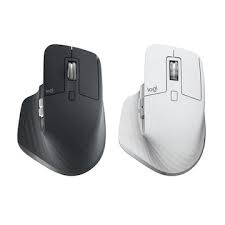
Is Your Mouse Holding Back Your AI Workflow and Causing Wrist Fatigue?
As an AI developer constantly navigating complex codebases, crunching datasets, and often monitoring model training sessions late into the night, I know firsthand that a mouse is far more than just a pointing device. It's a critical partner for productivity and wrist health. Frustrated by the limitations of conventional mice, I decided to put the Logitech MX Master 3S to the test. Could this accessory truly elevate my demanding AI workflow? Here's my honest, in-depth review.
Logitech MX Master 3S: Key Specifications at a Glance
Before diving into the user experience, let's quickly review the core technical specs that make this premium productivity mouse stand out.
| Feature | Detail |
|---|---|
| Sensor Technology | Darkfield high precision (8000 DPI, tracks on glass) |
| Buttons | 7 (Left/Right click, Back/Forward, App-Switch, Wheel mode-shift, Thumbwheel) |
| Scroll Wheel | MagSpeed™ Electromagnetic scrolling (hyper-fast & line-by-line precision) |
| Connectivity | Logi Bolt USB Receiver, Bluetooth Low Energy (up to 3 devices) |
| Battery | Up to 70 days (USB-C rechargeable, 1 min charge for 3 hours use) |
| Ergonomics | Right-hand sculpted design |
| Approx. Price | $99.99 / £109.99 |
The Good, The Bad, and The Essential: MX Master 3S Pros & Cons
- Pros: The Ultimate Productivity Enhancer
- Exceptional Ergonomics: My wrist fatigue has significantly decreased during long AI coding and data visualization sessions. The sculpted shape fits my hand perfectly.
- MagSpeed™ Scroll Wheel: Whether I need to fly through thousands of lines of code or precisely scroll through a data table, this wheel is a game-changer. The silent operation is a bonus.
- Customizable Buttons: With Logi Options+ software, I've mapped frequently used IDE shortcuts (build, run, debug), terminal commands, and even prompt cycling for Stable Diffusion. The thumb wheel for horizontal scrolling in large datasets is revolutionary.
- Logi Flow & Multi-Device Mastery: Switching seamlessly between my Windows dev machine, a remote Linux server, and my MacBook for presentations is incredibly efficient. Logi Flow allows me to move my cursor and even copy/paste text between machines as if they were one. This is HUGE for AI setups.
- Quiet Click Technology: A small but significant detail that allows for focused work without distracting clicks, especially in shared spaces or late-night sessions.
- Darkfield Sensor: Tracking on virtually any surface, including glass, and offering up to 8000 DPI, ensures precision even on high-resolution multi-monitor setups.
- Cons: Where it Falls Short
- Price Tag: It's a premium mouse with a premium price. If you don't need its advanced features, it might be an overkill for casual use.
- Right-Hand Only: A significant drawback for left-handed users who miss out on this ergonomic design.
- Not a Gaming Mouse: Its lower polling rate makes it unsuitable for competitive gaming. But then again, it's not designed for that.
- Logi Options+ Software: While powerful, it can occasionally be a bit resource-intensive or buggy in the background.
Deep Dive: How the MX Master 3S Elevates the AI Professional’s Desk
The MX Master 3S isn't just another mouse; it's a workflow accelerator tailored for intensive digital work. Here's why it shines for AI professionals:
- Sustained Focus & Ergonomic Endurance: Long hours of coding, debugging, and model monitoring are common. The MX Master 3S's ergonomic design significantly reduces strain, helping to prevent repetitive strain injuries and maintain focus for extended periods. It actively supports your hand in a natural position.
- Unlocking Macro Power for AI Tasks: 'Logi Options+' is where the magic truly happens. I've customized my side buttons for one-click execution of specific commands in my IDE (e.g., "run current cell" in Jupyter, "commit changes" in Git, "open new terminal"). The thumb wheel, which handles horizontal scrolling, is invaluable for navigating wide dataframes or complex neural network architectures in visualization tools. This level of customization dramatically cuts down on keyboard shortcuts and context switching.
- Seamless Multi-System Orchestration (Logi Flow): My setup involves a powerful Linux workstation for GPU-intensive model training, a Windows machine for data preprocessing, and a MacBook for presentations and quick tasks. Logi Flow is an absolute lifesaver. Moving the cursor fluidly between screens across different operating systems, and even copying text or files from one to another, feels like magic. This isn't just convenience; it fundamentally reduces the cognitive load and friction associated with multi-platform AI development.
The Verdict: Is the MX Master 3S Your Next AI Co-Pilot?
The Logitech MX Master 3S is a highly recommended mouse for AI developers, data scientists, content creators, and any professional who spends long hours performing precise and complex tasks at their computer. For those juggling multiple devices and operating systems, the Logi Flow feature alone justifies the investment. Its superior comfort, powerful customization, and unparalleled multi-device support will undeniably elevate your productivity.
However, if your needs are limited to casual web browsing, your budget is tight, or you're a left-handed user, you might want to reconsider. Similarly, competitive gamers will find it lacking. In my experience, this mouse delivers "value far exceeding its price" for the right user. It's a tool designed to remove friction from your digital life, allowing you to focus on what truly matters: innovating with AI.
🏆 Editor’s Choice
Logitech MX Master 3S
Best value model optimized for AI tasks
* Affiliate disclaimer: We may earn a commission from purchases.
#Logitech #MX Master 3S #productivity mouse #AI tools #accessories #hardware review #ergonomic mouse #Logi Flow #AI development